



Online learning has changed the way people gain new skills. Students attend virtual classes, employees complete workplace training online, and professionals learn through recorded courses, tutorials, and educational videos.
But creating a good online lesson involves more than preparing slides and writing information on a screen. The way that information is explained also matters. A clear voiceover can help learners follow a lesson, understand difficult topics, and stay connected with the content.
Traditionally, course creators needed a voice artist, recording equipment, and sometimes a studio to produce professional narration. This process could take time, especially when a course included many lessons or needed updates.
AI voiceover technology offers another option. With AI text-to-speech tools, creators can convert written scripts into spoken audio without recording every sentence themselves. They can prepare narration for training videos, explainers, presentations, and other learning materials.
However, generating a voice is only one part of creating a useful e-learning experience. The script, lesson structure, visual content, pacing, accessibility, and accuracy all need attention.
In this guide, we will explain how AI voiceovers work in e-learning, where they are useful, how to create course narration step by step, and what to consider before using AI-generated voices in educational content.
What are AI Voiceovers for E-Learning?
AI voiceovers for e-learning are spoken narrations generated from written text using artificial intelligence and text-to-speech technology.
Instead of recording a lesson with a microphone, a course creator prepares a script and uses a text-to-speech tool to convert it into audio. The generated voice reads the script, which can then be added to a presentation, training video, tutorial, or other learning material.
For example, imagine that you are creating an online course about digital marketing. One lesson explains how search engines work. You prepare a short script explaining crawling, indexing, and ranking. An AI voice generator can turn that script into spoken narration for your lesson.
The learner can then watch the presentation while listening to the explanation.
How does the technology work?
A typical AI text-to-speech process looks like this:
- Text preparation: You write the lesson script or narration.
- Text processing: The system analyses the written content and prepares it for speech.
- Speech generation: The AI model generates spoken audio using the selected voice.
- Audio review: You listen to the result and check pronunciation, pacing, and clarity.
- Final production: You add the audio to your video, presentation, or course material.
Modern AI voices can offer more natural pronunciation, pauses, and speech patterns than older computer-generated voices. However, the result depends on the technology, selected voice, language, and quality of the script.
It is also important to understand the difference between a voiceover tool and a complete e-learning platform. A voice generator creates narration. It does not automatically design lessons, create assessments, manage students, or publish a complete course.
Why Voiceovers Matter in Online Learning
Reading information on a screen is not always the easiest way to learn. Some learners prefer listening to explanations, while others find it useful to read and listen at the same time.
Voiceovers give course creators another way to present information.
1. Make lessons easier to follow
A well-written narration can guide learners through a topic instead of leaving them to interpret every slide independently.
For example, a slide may show five steps in a workplace safety process. The voiceover can explain what each step means and why it matters.
2. Help explain complex information
Technical subjects often include unfamiliar terms, processes, and instructions. A voiceover can explain these ideas in a conversational way.
For example, a software training video can show a screen recording while the narrator explains where to click and what each option does.
3. Create a consistent learning experience
When a course contains several lessons, consistent narration helps maintain a similar presentation style.
This can be particularly useful for employee onboarding, product training, and educational programmes with multiple modules.
4. Make course updates easier
Imagine that a company changes its internal software process. The training video needs to be updated to explain the new steps.
With AI narration, the creator can edit the affected script and generate replacement audio instead of arranging an entirely new recording session.
The updated audio still needs to be checked and synchronized with the visuals, but the process can be more convenient.
5. Support different learning situations
Voiceovers can be useful when learners are following a presentation, watching a demonstration, or reviewing a recorded lesson. They can also provide an additional way to access information for people who prefer listening.
However, audio should not be the only way to access important course information. Providing written content, captions, and transcripts makes lessons more flexible.
Where Can You Use AI Voiceovers in E-Learning?
AI-generated narration can support several types of educational and training content.
1. Online courses
Course creators can use AI voiceovers to explain individual lessons, introduce new modules, and guide learners through presentations.
For example, an online course about graphic design might use narration to explain colour theory, typography, and layout principles.
2. Employee onboarding
New employees often need to learn company policies, workplace procedures, and the tools they will use every day.
AI narration can be used in onboarding videos to explain:
- Company introductions and values
- Workplace policies
- Software and internal tools
- Communication procedures
- Department responsibilities
The narration should be reviewed whenever company policies or procedures change.
3. Software tutorials
Software demonstrations often require someone to explain what is happening on the screen.
A voiceover can guide learners through a process, such as creating an account, changing settings, uploading a document, or generating a report.
For this type of content, narration should match the actions shown on screen. If the video shows a different button or menu from the one being described, learners may become confused.
4. Educational presentations
Teachers and trainers can add narration to slide-based lessons.
Instead of using slides containing only headings and bullet points, they can explain the main ideas through spoken audio.
This is particularly helpful when a presentation will be shared with learners who cannot attend a live session.
5. Compliance and safety training
Businesses often need to explain workplace rules, safety procedures, and regulatory responsibilities.
Voiceovers can make training videos easier to follow. However, these lessons require careful review because incorrect instructions can create serious problems.
The content should be approved by the appropriate subject expert before publication.
6. Microlearning videos
Microlearning presents information in short, focused lessons.
For example, a company may create a two-minute video explaining how to report a technical issue or follow a particular safety procedure.
AI narration can help produce these short lessons efficiently, especially when several topics need similar presentation formats.
7. Language learning
Language educators can use generated speech to prepare vocabulary explanations, listening exercises, pronunciation examples, and short dialogues.
The quality of pronunciation is especially important here. A generated voice should be checked by someone familiar with the target language when the material is intended to teach correct pronunciation.
AI Voiceovers vs. Traditional Voice Recording
Both AI-generated narration and human voice recording can be useful for e-learning. The right choice depends on the course, audience, budget, and expected quality.
| Factor | AI voiceover | Human voice recording |
|---|---|---|
| Production | Generated from written text | Recorded by a voice artist or presenter |
| Updates | New audio can be generated from revised text | Usually requires another recording |
| Voice selection | Depends on available AI voices | Depends on the selected speaker |
| Delivery | Consistent, but may need adjustments | Can offer natural personal expression |
| Production time | Can be quick for prepared scripts | Depends on recording and revision schedules |
| Emotional expression | Varies by voice and tool | Human performers can respond naturally to context |
| Budget | Pricing depends on the tool and usage plan | Depends on talent, recording, and editing costs |
| Creative control | Depends on available voice and speech settings | More direct control through performance and direction |
AI narration can be a practical choice for frequent updates, large volumes of training material, and straightforward educational explanations.
Human narration may be more suitable when the course depends on a personal connection, a distinctive presenter, complex emotional delivery, or a specific performance style.
Some creators also use a combination of both. For example, a course may use a human instructor for the main lessons and AI-generated narration for short updates or supplementary explanations.
The goal should not be to choose one method for every situation. It should be to select the approach that best serves the learners.
How to Create AI Voiceovers for E-Learning: Step-by-Step
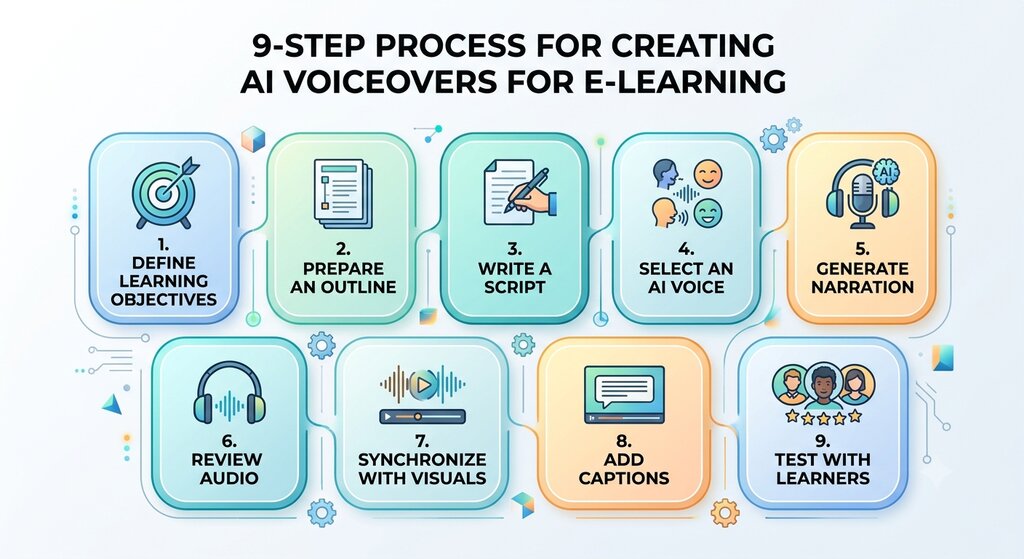
Creating an AI voiceover involves more than pasting a long script into a text-to-speech tool. A structured process helps keep the narration clear and makes the final course easier to understand.
Step 1: Define the learning objective
Before writing the narration, decide what learners should understand or be able to do after completing the lesson.
For example:
Topic: Basic Excel formulas
Learning objective: By the end of the lesson, learners should be able to use basic SUM and AVERAGE formulas.
This objective gives the lesson a clear direction. It also helps you decide what information belongs in the narration and what can be left out.
Avoid adding unrelated information simply to make the lesson longer.
Step 2: Prepare a lesson outline
Break the topic into smaller sections.
For an Excel lesson, the outline could be:
- Introduction to formulas
- Understanding the SUM formula
- Using the AVERAGE formula
- Practical example
- Short recap
An outline makes it easier to organize the script and prevents the narration from becoming one long explanation.
Step 3: Write the narration script
Write the script in the same way you would explain the topic to another person.
Avoid copying large blocks of text directly from textbooks, presentations, or technical documents. Written material often needs to be rewritten before it works well as spoken narration.
For example:
Written explanation:
“The SUM function is used to calculate the aggregate of numerical values contained within a specified range of cells.”
Voiceover-friendly explanation:
“The SUM function helps you add numbers in Excel. You can use it to calculate the total of several cells without adding each number manually.”
The second version is easier to follow when heard.
Step 4: Select an AI voice
Choose a voice that matches the course’s subject and audience.
A professional training course may need a clear and steady voice. A children’s educational lesson may benefit from a more expressive delivery.
Listen to sample audio before choosing. Do not select a voice only because it sounds impressive in a short preview. Test it with actual course content, including technical words and longer sentences.
Step 5: Generate the narration
Enter your prepared script into an AI text-to-speech tool.
If the tool offers voice settings, review the available options for language, voice style, speed, and other supported controls.
For longer lessons, generate audio in smaller sections rather than processing the entire course as one large script. This makes it easier to identify and replace sections that need correction.
Step 6: Review the generated audio
Listen to the complete narration before using it.
Check:
- Are the words pronounced correctly?
- Are technical terms understandable?
- Does the voice speak too quickly?
- Are the pauses natural?
- Are any sentences difficult to follow?
- Does the narration match the meaning of the script?
Do not assume that generated audio is automatically correct just because the written text is correct.
Step 7: Add narration to the learning material
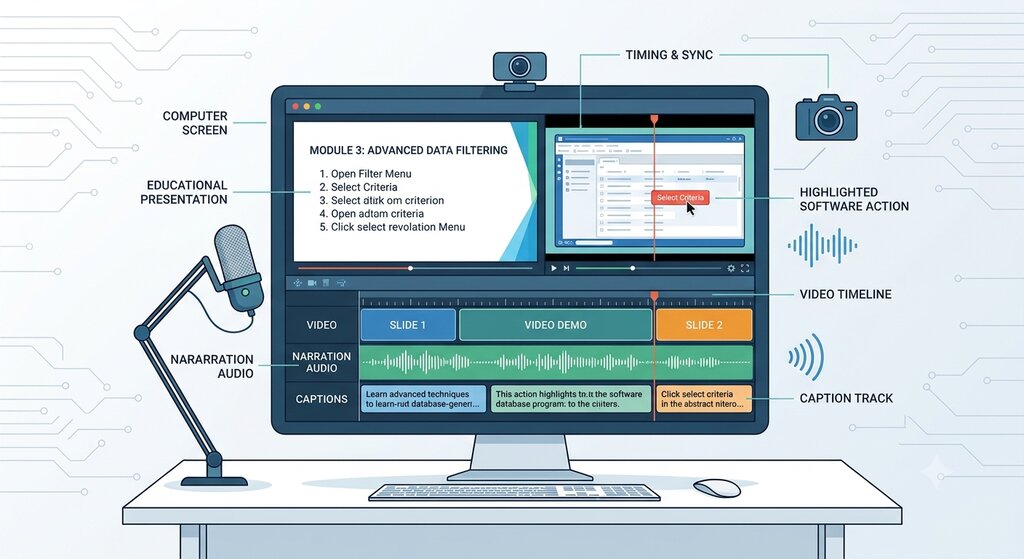
Use a video editor or presentation tool to combine the generated audio with slides, screen recordings, animations, or other visuals.
Make sure that the narration matches the information shown on screen.
For example, if the narrator says, “Select the Settings option,” the video should show the correct Settings option at that moment.
Step 8: Add captions and a transcript
Captions display spoken words as text during a video. A transcript provides the written version of the narration.
These resources help learners follow the lesson in different situations, including environments where audio cannot be played.
Review automatically generated captions before publishing because technical terms, names, and numbers may be transcribed incorrectly.
Step 9: Test the lesson with learners
Before publishing a complete course, ask a few people to review a sample lesson.
Ask whether the narration is easy to understand, whether the speed feels comfortable, and whether the audio matches the visuals.
How to Write a Good Script for Course Narration
The script has a major influence on the quality of an AI voiceover.
Even a natural-sounding voice can produce an unsatisfactory result if the script contains long sentences, unclear instructions, or poorly explained concepts.
Here are some practical ways to improve your narration script.
1. Write for listening, not just reading
People may read a long paragraph at their own pace, but spoken information arrives one sentence at a time.
Use shorter sentences and explain one main idea before moving to another.
For example:
Less suitable for narration:
“Workplace communication involves the exchange of information between employees, departments, managers, and other stakeholders through formal and informal channels.”
Better for narration:
“Workplace communication is the way people share information at work. It happens between employees, managers, departments, and other people involved in the business.”
The second version is easier to understand when spoken.
2. Use clear introductions
Start each lesson by telling learners what they will learn.
For example:
“In this lesson, we will look at three common ways to protect your online accounts. We will also explain how strong passwords and two-factor authentication help improve account security.”
This gives learners a clear idea of what to expect.
3. Explain technical terms
Do not assume that every learner already understands the terminology.
If you use a technical word, explain it briefly the first time it appears.
For example:
“Encryption is a process that converts information into a protected format so that unauthorized people cannot easily read it.”
This makes the lesson more approachable for beginners.
4. Include practical examples
Examples help learners connect concepts with real situations.
Instead of only explaining what a spreadsheet formula does, show a simple example using actual numbers.
Instead of describing customer service communication in general, demonstrate how an employee might respond to a customer complaint.
Tips for Making AI Course Narration Sound Natural
AI narration can save recording time, but it still needs preparation and review.
The following practices can help improve the final result.
1. Avoid very long paragraphs
Break large scripts into smaller sections. This makes the narration easier to review and helps you replace individual sections when changes are needed.
2. Use punctuation carefully
Punctuation can influence how a text-to-speech system interprets a sentence.
Commas, full stops, and question marks help structure spoken language. However, the exact effect depends on the tool and voice model.
3. Control the speaking speed
A voice that speaks too quickly can make technical lessons difficult to understand.
A voice that speaks too slowly may make simple topics feel unnecessarily long.
Choose a comfortable pace and test it with the actual lesson.
How to Evaluate the Quality of Your E-Learning Voiceovers
A voiceover should be judged by how well it supports the learning experience, not only by how realistic it sounds.
Use the following checklist before publishing.
| Quality factor | What to check |
|---|---|
| Clarity | Can learners understand every sentence? |
| Pronunciation | Are technical words, names, and numbers correct? |
| Pace | Is the narration comfortable to follow? |
| Consistency | Does the voice remain suitable across lessons? |
| Accuracy | Does the spoken content match the approved script? |
| Synchronization | Does the narration match the visuals? |
| Accessibility | Are captions, transcripts, and usable controls available? |
| Learner feedback | Do learners find the lesson easy to follow? |
How Speakatoo Can Help Create E-Learning Narration
Speakatoo offers text-to-speech functionality that can help course creators generate narration from written content. Instead of recording every line manually, you can enter your prepared text, select an available voice, and generate audio for your learning material.
You can explore the Speakatoo Text to Speech tool to learn more about its voice-generation options.
How can you use it in an e-learning workflow?
A simple process could look like this:
- Prepare the script for your lesson.
- Divide long content into smaller sections.
- Open Speakatoo’s text-to-speech tool.
- Select a suitable voice and supported language.
- Enter the narration text.
- Generate and review the audio.
- Make corrections if pronunciation or pacing needs improvement.
- Use the generated audio in your presentation or video editor.
For example, an educator preparing a course on basic computer skills can create separate narration for lessons about file management, internet browsing, and email communication.
Each lesson can have its own script and audio file, making updates easier to manage.
Remember that Speakatoo’s role in this process is voice generation. You will still need a suitable presentation or video-editing tool to combine the narration with visuals, and a course platform or learning management system to distribute the finished lessons.
Frequently Asked Questions
1. What are AI voiceovers in e-learning?
AI voiceovers in e-learning are spoken explanations generated from written scripts using text-to-speech technology. They can be used in online courses, training videos, presentations, tutorials, and educational content.
2. Can I use AI voices for online courses?
Yes. AI-generated narration can be used for online course introductions, lesson explanations, slide presentations, software tutorials, and training videos. Choose a voice that suits your audience and review the audio before publishing.
3. How do I create an AI voiceover for a training video?
First, define the learning objective and prepare a narration script. Then select a suitable AI voice, generate the audio, check pronunciation and pacing, and add the narration to your video using an editing tool. Finally, review the complete video and add captions.
4. Is AI narration better than hiring a voice artist?
It depends on the project. AI narration can be convenient for frequent updates and large amounts of straightforward content. A human voice artist may be a better choice when a lesson needs personal expression, a distinctive performance, or a strong emotional connection.
5. Can AI voiceovers be used for employee training?
Yes. Businesses can use AI narration for onboarding videos, software tutorials, workplace procedures, product training, and compliance lessons. Important company policies and safety instructions should be checked by the relevant subject experts.
6. Which AI voice is best for educational content?
The best voice depends on the subject and audience. A clear, steady voice may work well for technical training, while a friendly and expressive voice may suit younger learners or introductory lessons. Always test a voice with the actual course script.
7. Can AI voice generators create narration in different languages?
Some AI voice generators support multiple languages. However, language availability and pronunciation quality vary between tools and voices. Check the supported languages and test regional words, technical terms, and mixed-language sentences before using the audio in a course.
8. How long should an e-learning voiceover be?
There is no fixed length for every lesson. The narration should be long enough to explain the learning objective without adding unnecessary information. Dividing a large topic into smaller lessons often makes it easier for learners to follow.
9. Do AI-generated course videos need captions?
Captions are strongly recommended. They help people who are deaf or hard of hearing and support learners who cannot play audio. Captions should be synchronized with the narration and checked for accuracy.
10. Can AI voiceovers replace teachers or trainers?
No. AI narration can explain prepared information, but it does not replace a teacher’s expertise, learner interaction, feedback, mentoring, or ability to respond to individual questions. It is best treated as a content-production tool.
11. Can I update an AI voiceover when my course content changes?
Yes. You can revise the affected script and generate replacement audio. You should then update the related video or presentation and check that the narration still matches the visuals.
Final Thoughts
AI voiceovers are making it easier for educators, course creators, and businesses to prepare spoken narration for online learning.
They can be useful for training videos, software tutorials, educational presentations, employee onboarding, and short learning modules. They can also make it more convenient to update narration when course material changes.
However, a good e-learning experience depends on much more than the voice. The script must be clear, the information must be accurate, and the narration should match the visuals. Captions, transcripts, and learner feedback are also important parts of the process.
Start with a small lesson, test a suitable AI voice, review the generated audio, and ask learners for feedback before producing a complete course.
When used thoughtfully, AI text-to-speech can be a helpful part of creating clear, consistent, and accessible learning content.