


Introduction
Creating a YouTube video takes time. You research the topic, write the script, record your voice, edit the footage, and prepare everything for publishing. But what happens when you want people in other countries to understand the same video?
If your video is in English, viewers who prefer Hindi, Spanish, Bengali, French, or another language may find it difficult to follow. Subtitles can help, but some viewers prefer listening in their own language rather than reading text while watching a video.
In the past, creating separate versions of a video often meant hiring voice actors or recording the narration again in every target language. That process could take considerable time, especially for creators who publish videos regularly.
Today, AI tools make multilingual video production more accessible. You can prepare a transcript, translate the script, generate speech in another language, and combine the new narration with your existing video. You do not necessarily need to record yourself speaking every language.
However, creating a good multilingual video involves more than translating a script and generating a voice. The translated words must preserve the original meaning, the narration must fit the video, and the final audio should be easy to understand.
In this guide, you will learn how to make multilingual YouTube videos using AI, how to choose between subtitles and dubbing, how to improve translation quality, and how tools such as Speakatoo can support the process.
What Are Multilingual YouTube Videos?
A multilingual YouTube video is a video that people can understand in more than one language. Depending on how it is produced, it may include translated subtitles, dubbed audio, or several audio tracks attached to the same video.
For example, imagine that you create an English tutorial explaining how to use a software application. You could make the content accessible to Hindi-speaking viewers by adding Hindi subtitles or preparing a Hindi voiceover.
You could then create another version in Spanish or Bengali if those languages are relevant to your audience.
There are three common approaches.
Subtitles and captions
Subtitles display translated text on the screen while the original audio continues to play. They are useful when you want to make your videos accessible to people who prefer reading, watching without sound, or following speech in another language.
AI voiceovers and dubbing
Dubbing replaces or overlays the original spoken audio with a voice speaking another language. AI-generated narration can reduce the need to record a separate human voiceover for every language.
Multiple audio tracks
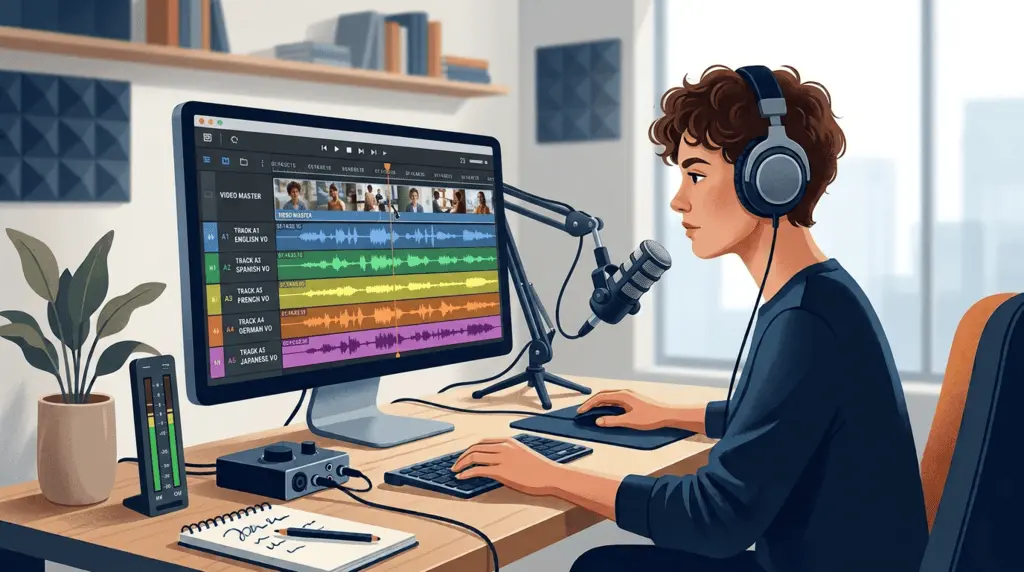
YouTube supports multi-language audio for eligible creators and videos. This lets creators add audio tracks in different languages to one video, allowing viewers to choose an available language through the player.
YouTube also offers automatic dubbing for eligible content. Availability, supported language pairs, and features can vary, so check the current YouTube automatic dubbing guidance before planning your workflow.
The important point is that these approaches serve different needs. You do not have to translate every video into every possible language. Start with the method that best suits your content and audience.
Why Are Multilingual Videos Becoming Important in 2026?
YouTube creators are increasingly able to reach viewers who speak different languages without managing an entirely separate channel for each audience.
One reason is that video platforms are improving their multilingual features. In February 2026, YouTube announced expanded automatic dubbing support and expressive speech capabilities for selected languages. These developments make it easier for eligible creators to offer translated audio, although the quality and availability of individual dubs can vary.
You can read the announcement in the official YouTube Blog.
Reach viewers beyond your original language
A useful video does not necessarily lose its value when it reaches someone who speaks another language. A programming tutorial, educational explanation, product demonstration, or cooking lesson may be relevant to viewers around the world.
Translation and dubbing can make that information easier to understand.
Give viewers more ways to consume content
Some viewers prefer subtitles. Others prefer listening to narration in their own language. Offering multiple language options gives viewers greater flexibility.
This can be particularly helpful for tutorials, educational videos and longer explanations where understanding every step matters.
Reuse content you have already created
You do not always need to create a completely new video for each language.
For many narration-based videos, you can reuse the original footage and prepare additional audio tracks. You may only need to change particular on-screen labels, examples, or culturally specific references.
This makes it possible to expand the reach of existing content without repeating the entire production process.
Learn which languages your audience actually wants
YouTube’s guidance on multi-language audio recommends examining performance by audio language and prioritizing a manageable number of languages rather than trying to cover every language immediately.
According to YouTube’s published data, creators who uploaded multi-language audio tracks saw more than 25% of their watch time come from views in a video’s non-primary language, based on data as of July 2025. This is a platform-reported result, not a guarantee that every channel will achieve the same outcome.
Subtitles vs. AI Dubbing vs. Multilingual Audio Tracks
Before creating a multilingual video, decide how viewers should experience it. The best approach depends on the type of content, your budget and the time you can spend reviewing the results.
| Method | How it works | Best suited for |
|---|---|---|
| Subtitles | Translated text appears on screen | Interviews, short videos, and viewers who prefer reading |
| AI voiceover | Generated speech narrates the translated script | Tutorials, explainers, and educational videos |
| Human dubbing | A voice actor records the translated dialogue | High-stakes, highly expressive, or performance-led content |
| YouTube multi-language audio | Additional audio tracks are attached to one video | Creators who want language options on a single upload |
| YouTube automatic dubbing | YouTube generates translated audio for eligible videos | Creators who want to explore platform-provided dubbing |
These options are not mutually exclusive. You can provide translated subtitles alongside dubbed audio to support different viewing preferences.
When should you use subtitles?
Subtitles are often a good starting point when you have limited resources or when the original speaker’s delivery is central to the experience.
They are also helpful for viewers watching in public places or environments where sound is unavailable.
However, viewers must divide their attention between reading and watching. Subtitles may be less convenient for a long tutorial in which the viewer needs to observe detailed on-screen actions.
When should you use AI dubbing?
AI dubbing is useful when the spoken explanation carries important information. It can be a practical option for software tutorials, educational content, product demonstrations, and narrated videos.
The process typically involves transcribing the original speech, translating the text, generating a voice in the target language, and aligning the new audio with the video.
AI dubbing still requires review. Translation errors, incorrect pronunciation, and timing problems can affect the final result.
When should you use YouTube’s built-in automatic dubbing?
If automatic dubbing is available for your channel and video, it may save you from producing every translated audio track manually.
Check the generated version before publishing or relying on it. YouTube explains that dubs can contain errors involving accents, background noise, proper names, idioms, or technical terminology. See its automatic dubbing help page for eligibility, language support and quality guidance.
If you want more control over the translated script or the generated voice, a manually prepared workflow may be more appropriate.
How to Make Multilingual YouTube Videos Without Recording Every Language
You can create multilingual versions of many narration-based videos by following a structured process. The steps below describe a practical workflow using transcription, translation, text-to-speech generation and video editing tools.
The exact steps will depend on your software, but the underlying process remains similar.
Step 1: Choose the original video
Start with a video that already provides value to your audience.
It could be a tutorial, product demonstration, educational lesson, explainer, or video that continues to receive views after its original publication.
Before translating it, ask yourself:
Is the information still accurate?
Does the video depend heavily on spoken dialogue?
Is there likely to be interest in other language versions?
Does the footage contain text that also needs translation?
Do you have permission to reuse all relevant footage, music, and voices?
Choose a video that is worth the extra effort. You can expand to other videos after you have tested the process.
Step 2: Create an accurate transcript
A transcript is the written version of the spoken content in your original video.
If you already have the approved script, use it as a starting point. Otherwise, you can use speech-to-text software to produce a draft transcript.
Listen to the recording while reviewing the text. Correct missing words, punctuation, product names, numbers, and technical terms.
For example, a software tutorial might contain the sentence:
“Open your account settings and enable two-factor authentication.”
If the transcription tool incorrectly recognizes “two-factor authentication,” the translation may also be wrong. Fixing the transcript before translation helps prevent errors from moving into later stages.
If several people speak in the video, identify the different speakers. This becomes particularly important when you want each person to have a distinct voice in the dubbed version.
Important: Automatic transcription is a starting point, not a guarantee of accuracy. Review it before moving on.
Step 3: Translate the transcript into the target language
Once the original transcript is accurate, translate it into the language you want to support.
For example, you might translate an English video into Hindi, Spanish, Bengali, or French.
Do not focus only on translating individual words. The target-language script should preserve the meaning and sound natural to its intended audience.
Consider this example:
Original English: “Let’s walk through the process step by step.”
Possible Hindi translation: “आइए, इस प्रक्रिया को एक-एक चरण में समझते हैं।”
The translation communicates the same idea in a natural instructional style. A literal translation that follows the English sentence structure too closely might sound less comfortable to a native speaker.
When reviewing a translation, check:
Does it preserve the original meaning?
Are technical terms used correctly?
Are names, numbers, and measurements accurate?
Does the language sound natural to the intended audience?
Are idioms or culturally specific references explained appropriately?
For technical or educational content, ask a fluent speaker or qualified reviewer to check important passages.
You can use Speakatoo Text Translation to help translate written scripts between supported languages. Review the output before using it for narration, especially when accuracy is important.
Step 4: Adapt the translated script for spoken delivery
A translation that reads well on a page may not work equally well when spoken aloud.
Different languages use different sentence structures, and the translated version may be longer or shorter than the original. A sentence that takes three seconds to speak in English may need more time in another language.
Edit the translated script so it sounds natural when spoken.
For example:
Direct translation: “For making your account secure, you should make sure that you are using a strong password.”
More natural English narration: “To secure your account, use a strong password.”
The second version is shorter and easier to follow.
Use the same principle when adapting a translated script. Keep the meaning intact, but avoid unnecessarily long sentences.
Do not remove important instructions simply to make the audio shorter. For a tutorial, clarity is more important than matching every sentence to the exact length of the original.
Step 5: Choose a suitable AI voice
The voice you select can affect how viewers experience the translated video.
For a tutorial, choose a voice with clear pronunciation and a comfortable pace. For a story or promotional video, a more expressive voice may be appropriate.
When comparing voices, consider:
Language and accent.
Pronunciation of technical terms.
Speaking speed.
Tone and level of expressiveness.
Consistency across the video.
Comfort during longer listening sessions.
Generate a short sample using your actual translated script. Include a question, a number, and a longer sentence so you can evaluate the voice more accurately.
You can explore the available options on Speakatoo Text to Speech, which offers speech generation in multiple languages and voice customization options.
Step 6: Generate the translated narration
Paste the approved translated script into your selected text-to-speech tool and generate the audio.
For a longer video, consider generating the narration in sections rather than as one large block. This makes it easier to correct individual sentences and adjust the timing.
Listen to each section before moving on.
Check for:
Mispronounced words.
Unnatural pauses.
Inconsistent speed.
Incorrect emphasis.
Words that are difficult to understand.
Unexpected differences in tone between sections.
If the output contains an error, correct the text or available voice settings and generate that section again.
If you want to use your own voice in a supported multilingual workflow, voice cloning may be another option. Speakatoo provides a Voice Cloning tool that lets users create a voice clone from a sample and select an output language from its supported options. Test the output carefully: a cloned voice does not guarantee perfect pronunciation or identical delivery in every language. Only clone and use voices when you have the necessary authorization.
Step 7: Match the narration to the video
This is one of the most important stages.
A translated voiceover should begin at the right moment and remain aligned with the relevant actions, demonstrations, and visuals.
Imagine that your original video shows a person clicking a button while the narration says, “Select the Settings option.”
If the translated narration plays after the person has already moved to the next screen, the viewer may become confused.
To improve synchronization:
Divide the video into scenes or meaningful sections.
Identify where each spoken instruction begins.
Place the corresponding translated narration at the appropriate point.
Adjust the timing without making the voice unnaturally fast.
Recheck the video while listening to the complete translated track.
You may need to shorten a translated sentence, extend a pause, or make a small editing adjustment.
For videos in which the speaker’s lips are clearly visible, a different-language voiceover may not match the mouth movements. For simple tutorials with screen recordings or slides, this is usually less noticeable than in close-up interviews.
Do not assume that generating a voice automatically produces a finished, synchronized dubbed video. Voice generation and video editing are separate parts of the workflow unless your chosen platform explicitly combines them.
Step 8: Add subtitles in the target language
Even if you have generated a voiceover, subtitles can make the video easier to follow.
Prepare subtitles that match the approved translated narration. Check that each line appears at the right time and remains on screen long enough to read.
Avoid placing too much text on the screen. Long subtitles can cover important interface elements or make it difficult to follow an on-screen demonstration.
If you use YouTube’s multi-language audio feature, its documentation explains that creators can add audio tracks to a single video and provide subtitles separately. Check the current multi-language audio instructions for the options available to your channel.
Step 9: Review the complete multilingual video
Before publishing, watch the video from beginning to end.
Do not check only the audio file. Review the narration together with the visuals, transitions, subtitles, and on-screen text.
Ask yourself:
Does the translation preserve the original message?
Is the voice easy to understand?
Does the narration fit the video?
Are all names and technical terms correct?
Are the subtitles synchronized?
Is the original background music still balanced?
Does the video contain text that should be translated?
Does the ending feel complete?
If possible, ask a fluent speaker of the target language to review the final version. A reviewer may notice unnatural expressions or cultural references that a machine translation misses.
Step 10: Publish and measure the results
Once the video is ready, decide how to publish the translated audio.
If your channel has access to YouTube’s multi-language audio feature, you can add supported audio tracks to one video. If you create a separate dubbed video, make sure its title, description, captions, and audience targeting are appropriate.
For eligible videos, YouTube automatic dubbing may also be an option.
After publishing, monitor performance by language where analytics are available. Compare watch time, audience retention, views and viewer feedback.
You do not need to translate your entire channel immediately. Start with one or two languages, learn from the results and expand when you see evidence of audience interest.
How to Make AI-Dubbed Videos Sound More Natural
A translated video can be technically correct and still feel awkward to watch. The following practices can help improve its quality.
1. Write for the listener not just the translator
Use clear sentences and avoid unnecessary jargon. If a sentence sounds unnatural when read aloud, revise it before generating the voice.
2. Maintain consistent terminology
If your video explains a software tool, use the same translated name for each feature throughout the video. Changing terminology halfway through can confuse viewers.
Create a small glossary for product names, technical expressions, and words that should remain in the original language.
3. Avoid forcing the narration to match every second
The translated script may need more time than the original. First, simplify unnecessary wording while preserving the meaning. Then make reasonable timing adjustments.
Do not speed up the voice so much that it becomes difficult to understand.
4. Choose a voice that suits the audience
A voice that works well for a friendly tutorial may not be ideal for a formal training video. Preview different voices and evaluate the complete sample rather than selecting one based on a single word.
5. Keep background audio balanced
If the original video contains music or sound effects, make sure they do not overpower the translated narration.
Some videos contain important non-speech audio, such as machinery, demonstrations, or environmental sounds. Preserve these elements when they help viewers understand the content.
6. Ask a native speaker to review important content
Human review is especially useful for educational, technical, health-related, financial, or legal information. A fluent reviewer can identify ambiguous translations and incorrect terminology before viewers encounter them.
How Speakatoo Can Help with Multilingual Voiceovers
You do not necessarily need a separate recording session for every language. A combination of translation, text-to-speech generation, and careful video editing can help you create additional language versions of suitable videos.
Speakatoo offers tools that can support parts of this process.
Translate your written script
The Speakatoo Text Translation tool can help translate a written script into a supported language. Use the translated text as a draft, then review it for meaning, terminology, and natural phrasing before generating audio.
Generate narration in another language
With Speakatoo Text to Speech, you can convert a translated script into generated speech using available language and voice options.
You can compare voices and use supported customization controls to find a suitable delivery style for your video.
Explore voice cloning for authorized projects
If you want to use a consistent voice identity across supported languages, you can explore Speakatoo Voice Cloning.
Review the tool’s current language support, requirements, and usage terms before relying on it for a project. Always obtain permission when using another person’s voice.
Combine the generated audio with your video
After generating the translated narration, use a video editor to align the audio with the footage, preserve important background sounds, and add translated subtitles.
These services support different parts of the production workflow. Do not assume that using them automatically transcribes, translates, dubs, synchronizes, and publishes a complete YouTube video in one operation.
For a practical starting point, explore Speakatoo’s Text to Speech service and Text Translation service.
Example: Turning an English Tutorial into a Hindi Video
Imagine that you have published a five-minute English tutorial explaining how to create an account and generate an AI voiceover.
You want to make it easier for Hindi-speaking viewers to follow the same instructions.
Here is how you could approach the project.
Original English narration:
“Open the website, create your account, and select the language you want to use. Enter your script, choose a voice, and generate the audio. Listen to the result before downloading the file.”
Step 1: Prepare the transcript.
Check the original narration and correct any mistakes. Keep the names of product features consistent with what viewers see on screen.
Step 2: Translate the script.
Create a Hindi version that preserves the original instructions and sounds natural when spoken.
Step 3: Generate the Hindi narration.
Use a suitable Hindi text-to-speech voice. Preview the audio and check that product names and technical terms are pronounced clearly.
Step 4: Edit the video.
Place the Hindi narration over the existing screen recording. Adjust the timing so the spoken instructions match the steps shown on screen.
Step 5: Add Hindi subtitles.
Check that the subtitles match the final narration and do not cover important buttons or interface elements.
Step 6: Review and publish.
Watch the complete video, correct any errors, and publish it using the method available to your channel.
The original footage remains useful, but the spoken explanation becomes accessible to another audience. You can apply a similar workflow to other languages when there is a reason to do so.
Frequently Asked Questions
1. How can I make multilingual YouTube videos without recording every language?
You can transcribe the original video, translate the transcript, generate narration using a text-to-speech tool, and synchronize the new audio with your existing footage. Review the translation and final video before publishing.
2. Can AI translate a YouTube video into Hindi?
AI tools can help translate a video’s transcript or generate a Hindi version of its narration. The quality depends on the tools, language support, and source material. Review the translation and pronunciation before publishing.
3. What is the difference between AI dubbing and subtitles?
Subtitles display translated text while the original audio plays. AI dubbing generates speech in another language, allowing viewers to listen to the translated narration rather than relying only on written text.
4. Does YouTube support multiple audio languages on one video?
Yes. YouTube’s multi-language audio feature allows eligible creators to add additional audio tracks to one video. Availability and management options depend on the feature access provided to your channel. Consult the official YouTube documentation.
5. Is YouTube automatic dubbing available to every creator?
YouTube has expanded automatic dubbing, but not every video is necessarily eligible for every language pair or feature. Check your YouTube Studio settings and the current automatic dubbing requirements.
6. Can AI dubbing preserve the original speaker’s voice?
Some systems offer voice matching or voice-cloning features, but the result depends on the tool and supported language. A similar voice does not guarantee identical pronunciation, emotion, or delivery. Obtain appropriate consent before cloning a person’s voice.
7. Can I use Speakatoo to create translated voiceovers?
Speakatoo offers text translation, text-to-speech generation, and voice cloning tools. These can support parts of a multilingual production workflow. You should check current language support and review the generated text and audio before using them in a finished video.
8. Do I need a separate YouTube channel for each language?
Not necessarily. YouTube’s multi-language audio feature allows supported audio tracks to be attached to one video. Separate channels may still make sense for some content strategies, but they are not always required.
9. How do I keep translated narration synchronized with my video?
Divide the video into sections, match each translated passage to the corresponding scene, and adjust the timing in a video editor. If the translated text is longer, revise unnecessary wording while preserving the meaning rather than making the voice unnaturally fast.
10. Should I use AI dubbing or hire a human voice actor?
AI dubbing can be practical for tutorials, explainers, and other repeatable content. Human voice actors may be preferable when a performance requires nuanced emotion, cultural interpretation, or precise delivery. The choice depends on your content, budget, and quality requirements.
11. Can I add subtitles to a video that already has dubbed audio?
Yes. Subtitles and dubbed audio can complement each other. Check that the subtitles match the intended language and are synchronized with the final video.
12. How many languages should I start with?
Start with one or two languages that have a clear audience or strong relevance to your content. Review performance and feedback before expanding. Producing a smaller number of accurate, useful versions is often more manageable than translating everything at once.
Final Thoughts
Creating multilingual YouTube videos no longer has to mean recording your entire script separately in every language. AI-assisted transcription, translation, and speech generation can help you reuse existing footage and prepare narration for additional audiences.
However, the best results still depend on the quality of the workflow. Correct the original transcript, adapt the translation for spoken delivery, select a suitable voice, synchronize the audio, and review the final video before publishing.
You should also choose languages based on your audience rather than assuming that every video needs dozens of translations.
If you want to start creating multilingual voiceovers, explore Speakatoo Text to Speech and Speakatoo Text Translation. Use them to support the relevant steps in your process, then combine the generated narration with your video editor and a careful quality review.
The goal is simple: help more people understand and enjoy your content without repeating the entire production process for every language.